
Fill in the form and download a clean PDF invoice. Free, with no signup and no watermark — your data never leaves your browser.
How to create an invoice
Add your details
Enter your business name, your client’s details, and an invoice number. Clients save on your device for next time.
Add line items, tax & currency
List what you’re billing with quantity and rate. Pick a currency, add tax or discount — totals calculate automatically.
Download the PDF
Click Download PDF for a clean, print-ready invoice to send to your client. No account, no email gate, no watermark.
Zelle Invoice Template
By Innvoic | Last checked: October 2026
Invoice a Zelle payment the bank-friendly way: your contact printed as plain text, on the screen and on the PDF, with no code anywhere.
Who this is for
Zelle suits bank-to-bank payments for nearby work: lawn care, cleaning, handyman jobs, tutoring, pet care. The client pays from a bank app they already trust, and the invoice contact printed as text means the PDF alone carries everything needed to pay.
How it works in 3 steps
- Start with the business and client names, then the line items. Enter the email or phone tied to your Zelle enrollment in the payment details.
- Check the preview and the PDF: both show your Zelle contact as plain text, since Zelle has no public payment link. The client copies that contact into their bank app or the Zelle app and types the amount.
- Send the invoice onward and file your own copy. Payment arrives through Zelle, and the printed contact ties it to the invoice.
How payment codes differ
For Zelle there is no preview code at all: the contact prints as text in the preview and on the PDF. The comparison of all four methods explains why Zelle alone works that way.
What to include on a Zelle invoice
- Your Zelle email or phone, matching your bank enrollment exactly
- Each service or item on its own line, with quantity and rate
- Business name plus client name
- Invoice number, invoice date, and when payment is due, either a date or Net 15 or Net 30
- Subtotal, tax where charged, and the total due
- A note that Zelle appears as text only and the client sends payment from their bank app or the Zelle app
- Optional notes, for example a thank you message or a note about late fees
Setting up Zelle to receive invoice payments
Zelle enrollment usually runs through your bank. The email or phone tied to that enrollment is the contact clients pay to, so print exactly that contact on the invoice. Terms for business payments shift over time, so confirm the current rules with Zelle and your bank before billing anyone through it. That contact is what the invoice shows as text, in the preview and in the PDF alike.
The client journey has no code in it. They open their bank app or the Zelle app, choose to send money, enter your email or phone, then key in the total. That text-only flow is the main difference from the other methods on this site, where the preview carries a code. It also means the PDF alone is enough for a Zelle client, since the contact prints on it as text.
When money fails to arrive, start with enrollment: ask the client to read back the exact email or phone they sent to, then compare it letter for letter with your bank enrollment. A payment aimed at a different contact either lands elsewhere or bounces. Next, look through recent bank activity by date and amount, and if the client still cannot find you, have them confirm the enrolled contact with their bank before trying again.
Sample invoice
A lawn care business bills a client for four mowing visits at 45 dollars each. The invoice shows: four visits, 180 dollars subtotal, no tax, 180 dollars total due, due within 14 days, payable to the business’s Zelle contact shown as text. The client sends 180 dollars to that contact through Zelle, and both sides have a record. The downloaded PDF shows the same invoice with the line “Pay via Zelle: alex@example.com”.
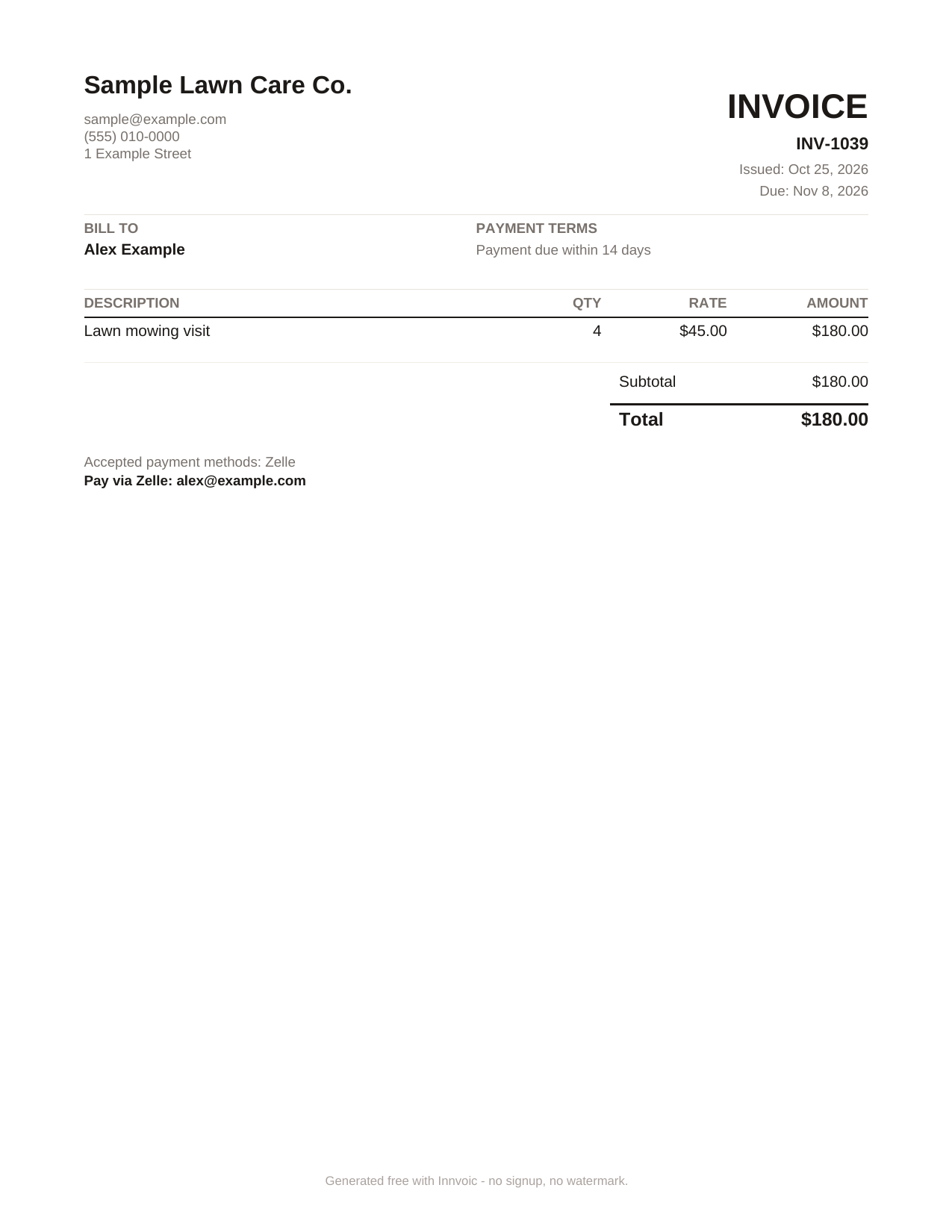
Sample invoice generated by the tool with fictional data: 4 lawn mowing visits, 180 dollars total, Zelle contact shown as text. Zelle is text-only in both the preview and the PDF.
What Innvoic does and does not do
Your invoice stays in your browser until you choose to share it, and no account stands between you and the document. Innvoic does not collect payments, does not send money, and does not charge you anything for the invoice. Zelle and your bank move the money under their terms, so any bank fee is between you and your bank.
Frequently asked questions
Do I need a Zelle business account to use this?
You need a Zelle enrollment that can receive payments, usually through your bank. Zelle’s rules for receiving business payments can change, so check Zelle’s and your bank’s current terms before you bill clients through it.
Does Innvoic collect my Zelle payment?
No. Innvoic only creates the invoice document. The client pays you directly through Zelle.
Why is there no code for Zelle?
By design. Zelle payments go to an email or phone contact, so the tool shows that contact as text on the invoice instead of a code.
Do I need to sign up to make an invoice?
No. The generator is free with no signup and no watermark.
Can I print the invoice?
Yes. The Zelle contact prints on the PDF as text, exactly as it appears on screen.
What if my client does not use Zelle?
Add bank details as plain text to the same invoice, or make a separate invoice for a different payment method.
Is there a fee for the invoice?
No. Making and downloading the invoice is free. Any fee that applies to a payment is separate.
Does Zelle itself send invoices?
No. Zelle moves money between bank accounts: you can receive money from customers and request money from them, but the invoice document itself comes from a separate tool like Innvoic, and the customer pays it through Zelle. Source: Zelle for Businesses.