
Free Invoice Template for Google Sheets (With Formulas)
By Innvoic
This free invoice template for Google Sheets does the arithmetic for you. Download the .xlsx file, import it with File > Import, and each line’s amount, the subtotal, the tax, and the total calculate automatically from working formulas. Subtotal, tax and total formulas tested in Excel. Set your own tax rate or leave it at zero. No signup, and the formulas survive the import.
Download the template
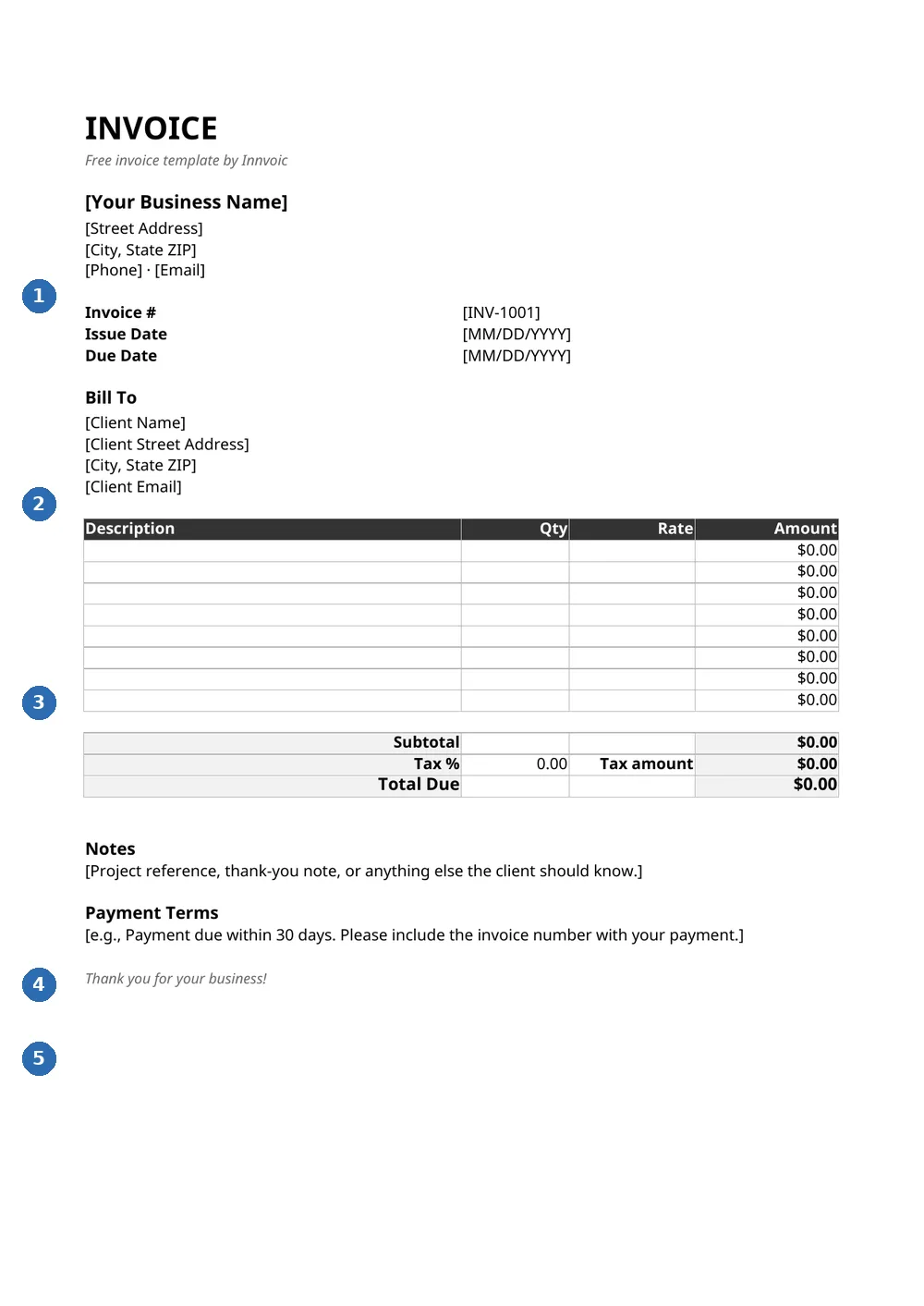
What you’re looking at: 1 — your business details; 2 — bill-to client block; 3 — line items (description, qty, rate); 4 — subtotal, tax, and total due; 5 — notes and payment terms. This is the actual .xlsx file — the same formulas work after importing into Google Sheets.
The download is a real .xlsx spreadsheet, not a picture of one. Every formula is built in: each Amount cell multiplies Qty by Rate, Subtotal sums the column, and the tax and total rows reference those results. Import it into Google Sheets (or open it in Excel) and the math works immediately.
How to use it in Google Sheets
- Download the .xlsx file with the link above.
- Import it. In Google Sheets, go to File > Import > Upload, choose the file, and pick “Create new spreadsheet” (or “Replace spreadsheet” if you’re starting from a blank one). The formulas come across intact.
- Fill in your details. Replace the bracketed placeholders, then type quantities and rates into the eight line-item rows. The Amount column fills in on its own.
- Set your tax rate. Type your own percentage into the Tax % cell, or leave it at 0 if you don’t charge tax. This is not tax or legal advice; use the rate that applies to you.
- Copy it per invoice. Use File > Make a copy for each new invoice and rename the copy with the invoice number. Your master stays clean, and every invoice keeps its own numbers.
What’s inside the template
- Business and Bill To blocks, plus invoice number, issue, and due dates
- Eight line-item rows with Description, Qty, Rate, and a formula-driven Amount column
- A Subtotal row that sums the Amount column
- A Tax % input cell plus a Tax amount row calculated from the subtotal
- A Total Due row that adds subtotal and tax together
- Notes and Payment Terms sections for anything the client should know
- Currency formatting on all money cells (set to dollars; change the number format if you bill in another currency)
Template vs. the online invoice generator
A spreadsheet template is the right call when you want the numbers to check themselves but still like working in a familiar grid. It’s easy to tweak: add rows, rename columns, or rearrange the layout without learning a new tool.
Where it falls short is everything around the math. Client details still live in the sheet, invoice numbers are manual, and turning it into a presentable PDF takes a few extra clicks. There’s no payment QR code and no automatic reminders either.
The generator at Innvoic covers that surrounding workflow. It keeps a client database, auto-increments invoice numbers, handles per-line and invoice-level discounts and taxes, adds QR codes for payment apps in the on-screen preview, and produces a clean PDF in one click. Everything runs in your browser with no account, and your data never leaves your device. Pick the spreadsheet when the formula grid is the point; pick the generator when the whole invoicing process is.
FAQs
Do the formulas really survive the import into Google Sheets?
Yes. They’re standard formulas (multiplication and SUM), which Sheets supports natively. After importing, click any Amount cell and you’ll see the formula sitting in the formula bar.
What if a cell shows an error like #VALUE!?
That usually means a Qty or Rate cell has text in it instead of a number. Clear the cell or type 0 and the error goes away. The template’s formulas are simple enough that there’s not much that can break.
How do I add more than eight line items?
Right-click a row number inside the items block and choose Insert row above or below. Then widen the Subtotal formula’s range (for example, change D16:D23 to D16:D25) so the new rows get included in the sum.
Can I change the currency?
Yes. Select the money cells, go to Format > Number > Custom currency, and pick the one you bill in. If you’d rather skip the formatting fiddliness, the online generator supports 35 currencies with USD as the default.
How do I send the finished invoice to a client?
In Sheets, go to File > Download > PDF for a clean copy to email, or use File > Share to send a view-only link. PDF is the safer choice when you want the numbers locked exactly as you calculated them.
Is my invoice data private in Google Sheets?
It’s stored in your Google account under Google’s privacy policies, which suits most people but is worth knowing. If you’d rather keep invoice data entirely on your own device, the online generator stores everything in your browser’s local storage and never sends it to any server.
Related
- Invoice Templates
- Excel Invoice Generator
- PDF Invoice Generator
- Free Invoice Generator, No Signup
- Guides
Related: Word invoice template, Excel invoice template, Google Docs invoice template, all free invoice templates, PDF invoice generator.
How to use the Google Sheets template with the online tool
The template is available as a Google Sheets file. Open the link above and make a copy to your own Google Drive to edit it. The sheet includes columns for line items, quantities, rates, and totals.
For new invoices, the free online invoice generator at the top of this page provides a full invoicing workflow: client management, automatic numbering, PDF download, and payment QR codes in the preview. The Sheets template is useful when you want a spreadsheet format for record-keeping or custom calculations.