
Free Word Invoice Template (DOCX Download)
By Innvoic
This free Word invoice template gives you a clean, professional invoice you can edit on your desktop. Download the .docx file, replace the bracketed placeholders with your business and client details, fill in up to eight line items, then print it or save it as a PDF to send. It works in Microsoft Word and free alternatives like LibreOffice.
Download the template
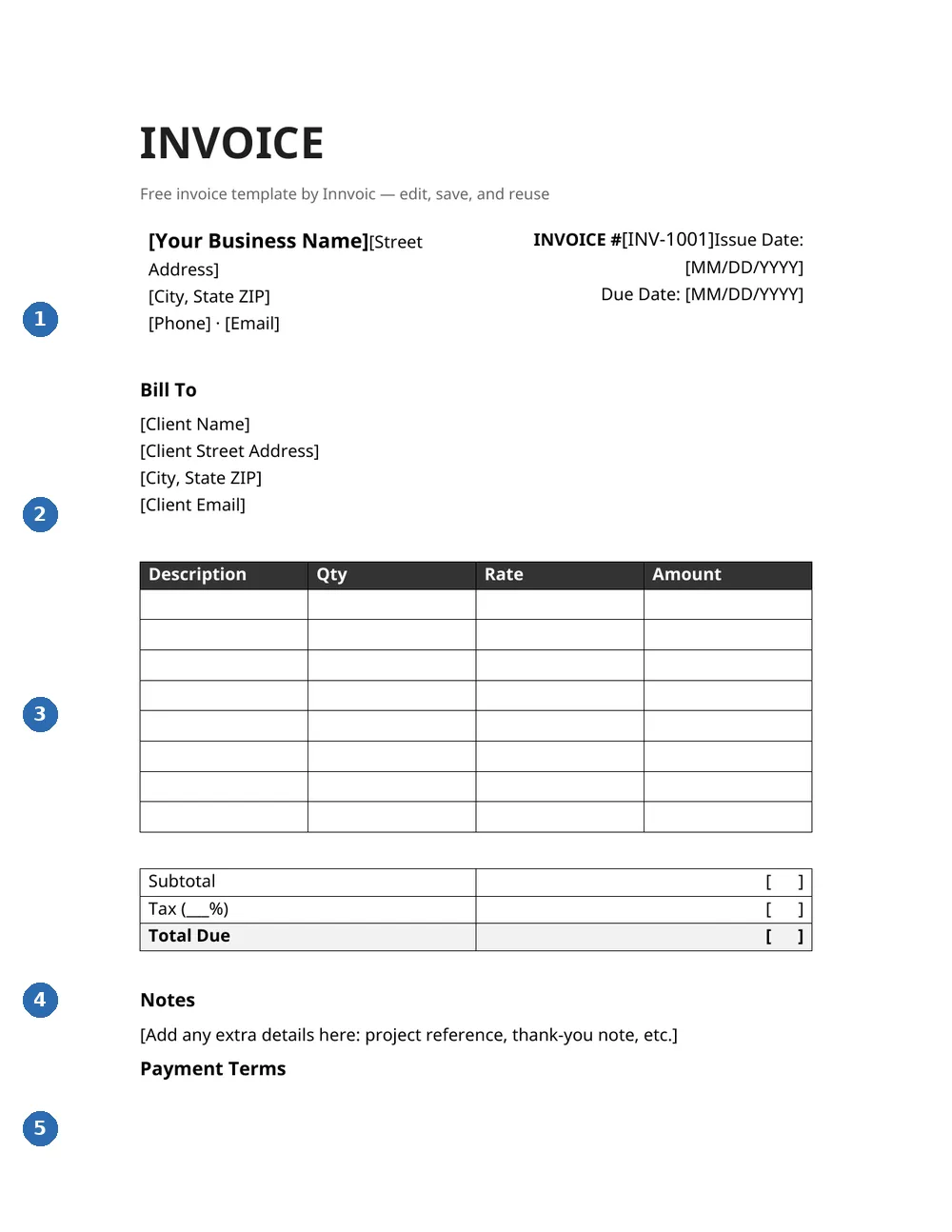
What you’re looking at: 1 — your business details; 2 — bill-to client block; 3 — line items (description, qty, rate); 4 — subtotal, tax, and total due; 5 — notes and payment terms.
The file is a standard .docx, so it opens in Microsoft Word on Windows and Mac, and in free alternatives like LibreOffice Writer and Apple Pages. Everything is laid out with ordinary Word tables and text, which means you can change fonts, colors, and spacing the way you would in any document. There is no macro code inside and nothing to install.
How to use it
- Download and open the file. Click the download link above, then double-click the .docx to open it in Word.
- Replace the bracketed placeholders. Swap [Your Business Name], [Street Address], [INV-1001], and the rest for your real details. The brackets make every field easy to spot, so you won’t miss one.
- Fill in your line items. Type a description, quantity, and rate in each row. The template has eight rows; right-click any row to insert more or delete the ones you don’t need.
- Work out the totals. Word is a word processor rather than a spreadsheet, so you type the subtotal, tax, and total into the totals box yourself. Run the numbers once in a calculator and double-check them before sending.
- Save a copy per invoice. Use File > Save As to store each finished invoice under its own number (INV-1002, INV-1003, and so on), then print it or choose File > Save As > PDF to email it.
What’s inside the template
- Your business name, address, phone, and email block
- Invoice number, issue date, and due date fields
- A Bill To block for your client’s details
- A line-item table (Description, Qty, Rate, Amount) with eight rows
- Subtotal, Tax, and Total Due rows
- Notes and Payment Terms sections for anything extra, like bank details or a late-fee clause
- A “Thank you for your business!” footer
Template vs. the online invoice generator
A Word template is a solid choice when you like working on your desktop, you want full control over the layout, or you only send a few invoices a month. It prints cleanly, and most clients are happy to receive a PDF made from it.
The trade-off is the manual work. You type every total by hand, you renumber each invoice yourself, and client details live wherever you saved the last file. If you invoice regularly, that busywork adds up fast.
The online generator at Innvoic handles the repetitive parts: it numbers invoices automatically, remembers your clients, calculates per-line and invoice-level discounts and taxes, and creates a PDF in one click, all without an account. Your invoice data stays in your browser’s local storage and is never sent to a server. Many people start with the template and switch to the generator once invoicing becomes a weekly chore.
FAQs
Is this Word invoice template really free?
Yes. Download it and use it for as many invoices as you like, for client work or your own business. There’s no signup and no watermark on the document.
Will it open in older versions of Word?
The .docx format works in Word 2007 and newer on Windows and Mac. If you don’t have Word at all, LibreOffice Writer (free) opens it, and you can also upload it to Google Docs.
Does the template calculate totals for me?
No. Word is a word processor, not a spreadsheet, so the Amount, Subtotal, Tax, and Total cells are ones you fill in yourself. If you’d rather have the math done for you, the Google Sheets version calculates everything with formulas.
Can I add my logo?
Yes. Click near the top of the document, go to Insert > Pictures, and place your logo above or beside your business name. Drag a corner (not an edge) to resize it so the layout stays tidy.
How do I turn the finished invoice into a PDF?
In Word, go to File > Save As and choose PDF from the format dropdown. On a Mac, use File > Print > PDF > Save as PDF. Sending a PDF beats sending the .docx because the layout can’t shift on the client’s computer.
What tax rate should I put in?
Whatever applies to your situation. Many freelancers charge no sales tax on services, while others must add state or local tax, so enter your own rate and don’t guess. This is not tax or legal advice; when in doubt, check with a tax professional.
Related
Related: Excel invoice template, Google Docs invoice template, Google Sheets invoice template, all free invoice templates, PDF invoice generator.
How to use the Word template with the online tool
Download the .docx file above and open it in Microsoft Word (or a compatible word processor). Fill in your business details, client information, and line items directly in the document. The template includes fields for invoice number, dates, and totals.
For new invoices, you can also use the free online invoice generator at the top of this page — no download needed. The online tool saves your clients and invoice history in your browser, exports to PDF, and works on mobile. Use the Word template when you need to email a .docx file or work offline.