
Fill in the form and download a clean PDF invoice. Free, with no signup and no watermark — your data never leaves your browser.
How to create an invoice
Add your details
Enter your business name, your client’s details, and an invoice number. Clients save on your device for next time.
Add line items, tax & currency
List what you’re billing with quantity and rate. Pick a currency, add tax or discount — totals calculate automatically.
Download the PDF
Click Download PDF for a clean, print-ready invoice to send to your client. No account, no email gate, no watermark.
Cash App Invoice Generator
By Innvoic | Last checked: October 2026
Turn a Cash App payment into a paper trail. Add your $cashtag, list the work, and hand the client an invoice whose preview code already carries the total.
Who this is for
Cash App suits repeat local work paid by tag: weekly cleanings, lawn visits, moving help, braiding appointments, tutoring blocks. When the same client pays the same tag every week, the invoice number does the sorting: it ties each payment to one job, one date, and one set of line items.
How it works in 3 steps
- Type in your business and client details, then the line items for the job. Put your $cashtag, dollar sign included, in the payment details.
- Check the preview. Its code points at your $cashtag link with the total already filled in, so the client confirms instead of typing. The downloaded PDF lists Cash App in words, with no code printed on it.
- Send it off and file your copy. Payment lands through Cash App, and the invoice number links it to the right job.
How payment codes differ
For Cash App, the preview code carries your $cashtag link with the total already filled in, so approval replaces typing. To see how that stacks up against Venmo, PayPal, and Zelle, read the four-method comparison.
What to include on a Cash App invoice
- Your $cashtag exactly as Cash App prints it, dollar sign at the front
- Each item on its own row, quantity beside rate
- Business name and client name at the top
- Subtotal, any tax, and the amount due
- When it is due: a date on the invoice, or Net 15/30 terms
- A line telling the client the preview code opens your Cash App link with the total already filled in
- Extra notes if you want them, for instance a reminder about late fees or a brief thank you
Setting up Cash App to receive invoice payments
Start with the $cashtag itself. It is the address clients pay to, so copy it onto the invoice precisely as Cash App displays it, dollar sign included. Before sending anything, open Cash App and look at your profile screen: the tag there, plus the display name beside it, should match the business name on the invoice. A client who lands on a mismatched name will hesitate, and a hesitant client pays late.
The client moment is short. A scan brings up your link with the total already entered, ready to confirm. Nobody types the amount, which removes the most common underpayment error: a client mistyping the total. Put the invoice number on the invoice and keep it in any message that goes with the payment, so a repeat client who pays twice in one week can match each payment to the right invoice.
For repeat clients, the same $cashtag serves every invoice. What changes is the invoice number, the date, and the line items. That reuse is fine, but it makes the invoice number load-bearing: without it, two payments to the same tag in the same month are hard to tell apart in Cash App activity. Check activity by amount and date when reconciling, and match each entry to its invoice number before marking anything paid.
Sample invoice
A cleaning business bills a client for four cleanings at 60 dollars each. The invoice shows: four cleanings, 240 dollars subtotal, no tax, 240 dollars total due, due within 14 days, payable to the business’s Cash App tag. The client scans the code in the tool’s preview, which opens the Cash App link with 240 dollars already filled in, and both sides have a record. The downloaded PDF shows the same invoice with Cash App listed as the accepted payment method.
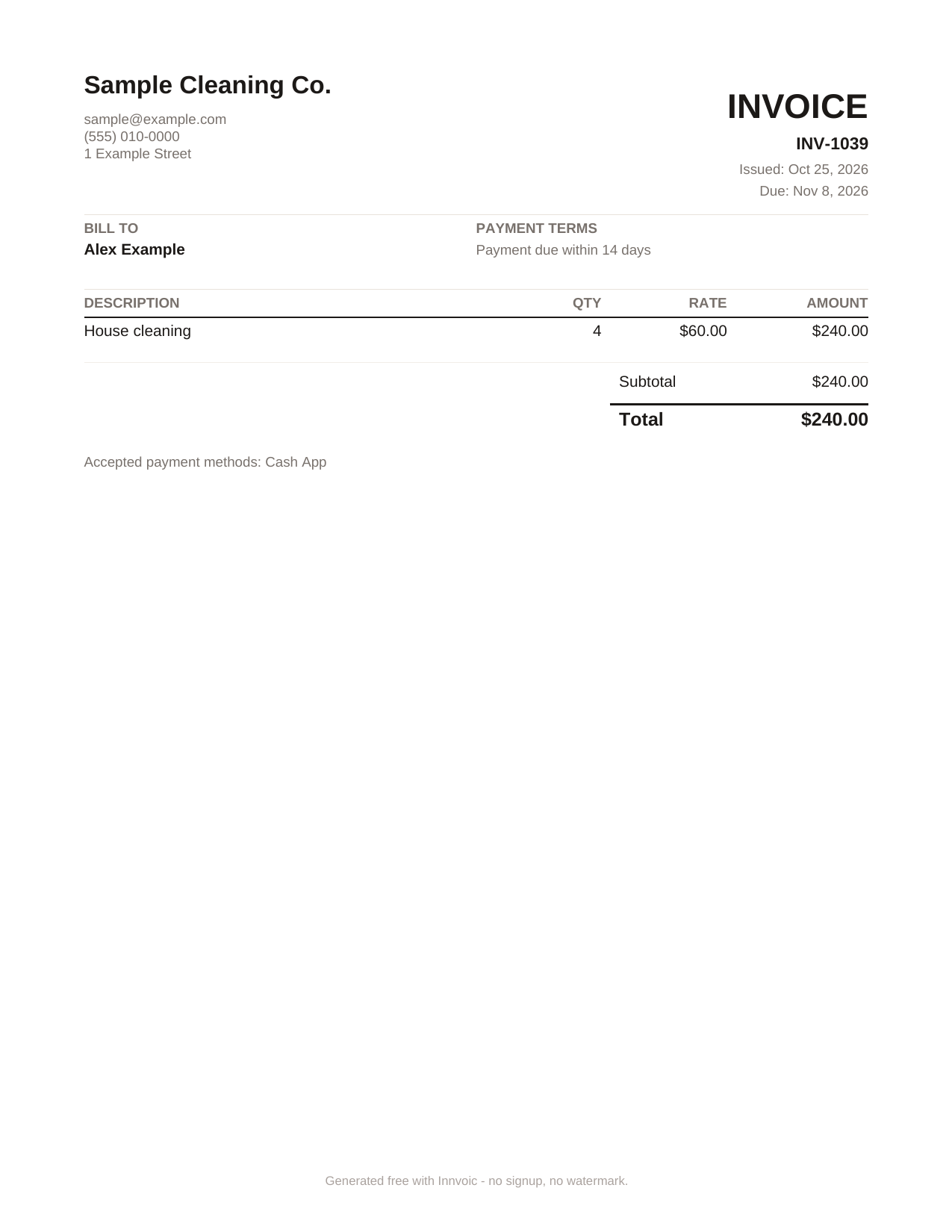
Sample invoice generated by the tool with fictional data: 4 house cleanings, 240 dollars total, Cash App listed as the accepted payment method. The scannable code appears in the tool’s preview, not in the PDF.
What Innvoic does and does not do
Innvoic does not collect payments, does not send money, and does not charge you anything for the invoice. The document is built on your device, and the payment itself runs through Cash App on Cash App’s terms, including any fee Cash App sets.
Frequently asked questions
Do I need a Cash App business account to use this?
You need a Cash App account that can receive payments. Cash App’s rules for receiving business payments can change, so check Cash App’s current terms before you bill clients through it.
Does Innvoic collect my Cash App payment?
No. Innvoic only creates the invoice document. The client pays you directly in Cash App.
Do I need to sign up to make an invoice?
No. The generator is free with no signup and no watermark.
Can I print the invoice and still use the code?
The downloaded PDF lists your payment method as text and does not include the scannable code. Scan the code from the tool’s on-screen preview instead.
What if my client does not use Cash App?
Add bank details as plain text to the same invoice, or make a separate invoice for a different payment method.
Is there a fee for the invoice?
No. Making and downloading the invoice is free. Any fee Cash App itself applies to a payment is separate.