
Free Invoice Template for Google Docs
By Innvoic
This free invoice template works smoothly with Google Docs. Download the .docx file, upload it through File > Open in Docs, and edit everything in your browser. It’s handy when you want to share an invoice link with a client or keep your templates in Google Drive next to the rest of your paperwork. No signup needed.
Download the template
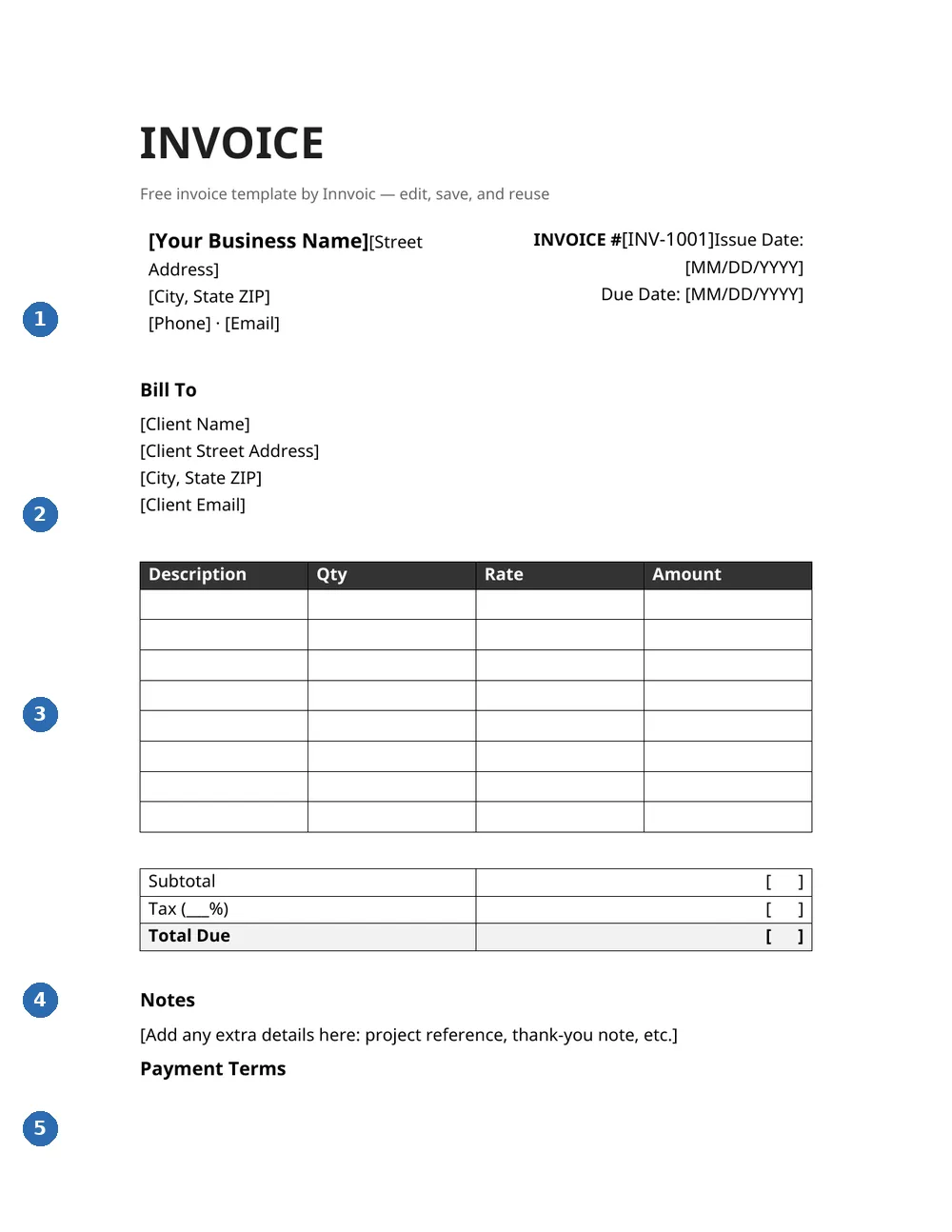
What you’re looking at: 1 — your business details; 2 — bill-to client block; 3 — line items (description, qty, rate); 4 — subtotal, tax, and total due; 5 — notes and payment terms. This is the actual .docx file, shown as it converts in Google Docs.
Google Docs doesn’t offer its own downloadable template file for this, so the download is a standard .docx. Docs opens it cleanly through its built-in converter, and your tables and formatting carry over. The file is free, it has no watermark, and you’re welcome to make as many copies as you need.
How to use it in Google Docs
- Download the .docx file using the link above.
- Upload it to Docs. Open Google Docs, go to File > Open > Upload, and pick the file. Docs converts it in a few seconds.
- Replace the placeholders and fill in your invoice. Swap out [Your Business Name], the invoice number, the dates, and the client details, then complete the line-item rows.
- Share it or send a PDF. Click Share to send your client a view-only link, or go to File > Download > PDF to email a fixed copy. The PDF route is safer when you don’t want the client changing anything.
- Reuse it. Keep the original as a master copy and use File > Make a copy for each new invoice, so you never overwrite a finished one by accident.
What’s inside the template
- A business details block at the top for your name, address, phone, and email
- Invoice number plus issue and due dates
- A Bill To section for the client
- A line-item table with eight rows (Description, Qty, Rate, Amount)
- Subtotal, Tax, and Total Due rows
- Notes and Payment Terms sections for extras like payment instructions
- Clean formatting built from plain tables, which is exactly what the Docs converter handles best
Template vs. the online invoice generator
A Docs-based template shines when sharing matters. You can send a link instead of an attachment, keep everything in Drive, and open it from any device with a browser. It also fits naturally if you already run your business paperwork in Google Workspace.
The catch is the same as with any manual template. Totals are typed by hand, invoice numbers are yours to track, and there’s no client list built in. Once you start invoicing every week, the admin starts eating into billable time.
The generator at Innvoic is the faster path for repeat work. It auto-numbers invoices, stores your clients, does per-line tax and discount math, plus invoice-level discounts, and turns the result into a PDF in one click, all without an account. Your invoice data stays in your browser and never touches a server. Use the template when sharing and simplicity matter most; use the generator when speed does.
FAQs
Do I need a Google account to download the template?
No. The download works for anyone. You only need a Google account if you want to open the file in Google Docs or store it in Drive.
Will the formatting look right after uploading to Docs?
Yes. The template uses plain tables and standard fonts, which is what the Docs converter handles best. Give the totals box a quick look after conversion, since that’s the fiddliest part of any layout.
Can my client edit the invoice if I share a link?
Only if you let them. Set the share permission to Viewer and they’ll see a read-only copy. If you’d rather lock it down completely, send a PDF instead through File > Download > PDF.
Does the template do the math for me?
In Docs, no. The totals are typed by hand, just like in Word. If you want automatic calculations, the Google Sheets version uses standard .xlsx formulas for amounts, subtotal, tax, and total (tested in Excel).
How do I make a new invoice from the same template?
Open your master copy and choose File > Make a copy, then rename the copy with the new invoice number. This keeps every invoice as its own document and protects the original from accidental edits.
Can I convert it back to a Word file later?
Yes. In Docs, go to File > Download > Microsoft Word (.docx). The round trip is usually clean because the template sticks to basic tables and text.
Related
Related: Word invoice template, Excel invoice template, Google Sheets invoice template, all free invoice templates, PDF invoice generator.
How to use the Google Docs template with the online tool
The template is available as a Google Docs file. Open the link above and make a copy to your own Google Drive to edit it. Fill in your business and client details, line items, and totals directly in the document.
For new invoices, you can also use the free online invoice generator at the top of this page. The online tool runs in your browser, saves clients and history locally, and exports to PDF — no Google account needed. Use the Docs template when you prefer working in Google’s editor or need to collaborate.